 Oriel
For Windows 11
A calmer desktop for Windows 11.
Oriel gives Windows a dock, a menu bar, every window at a glance and wallpapers that move with the day. It sits on top of Windows, and puts everything back the moment you remove it.









Control Center
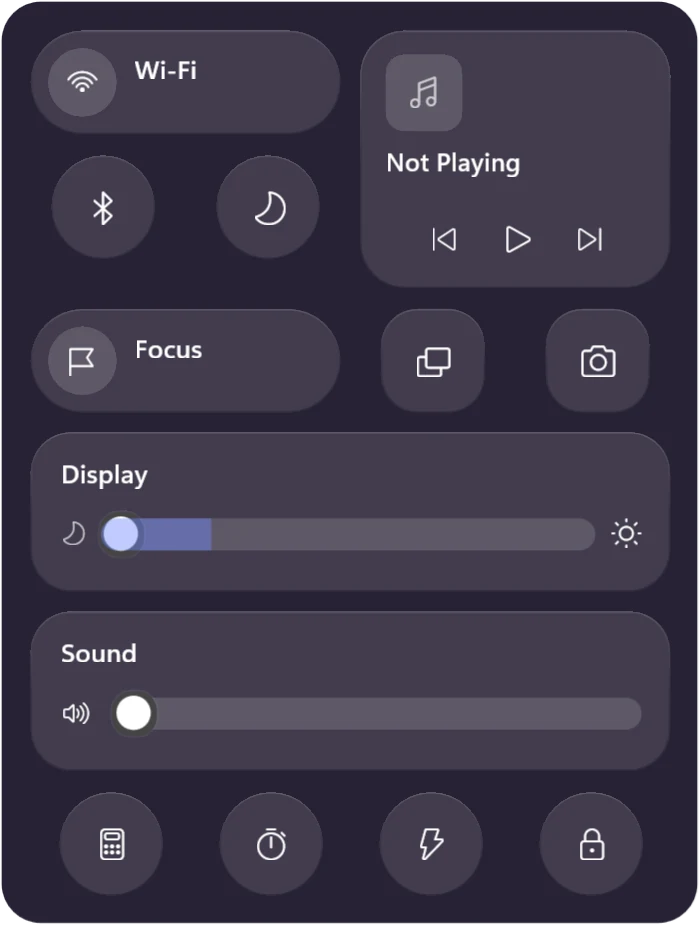
Everything you reach for, in one small panel.
Wi-Fi, Bluetooth, dark mode, brightness and sound, with music controls for whatever is playing. Focus, Keep awake, a calculator and a timer are one tap away.
- Slide brightness past the bottom and Moonlight dims the screen further than Windows allows
- Scroll over the status icons to change the volume
Overview
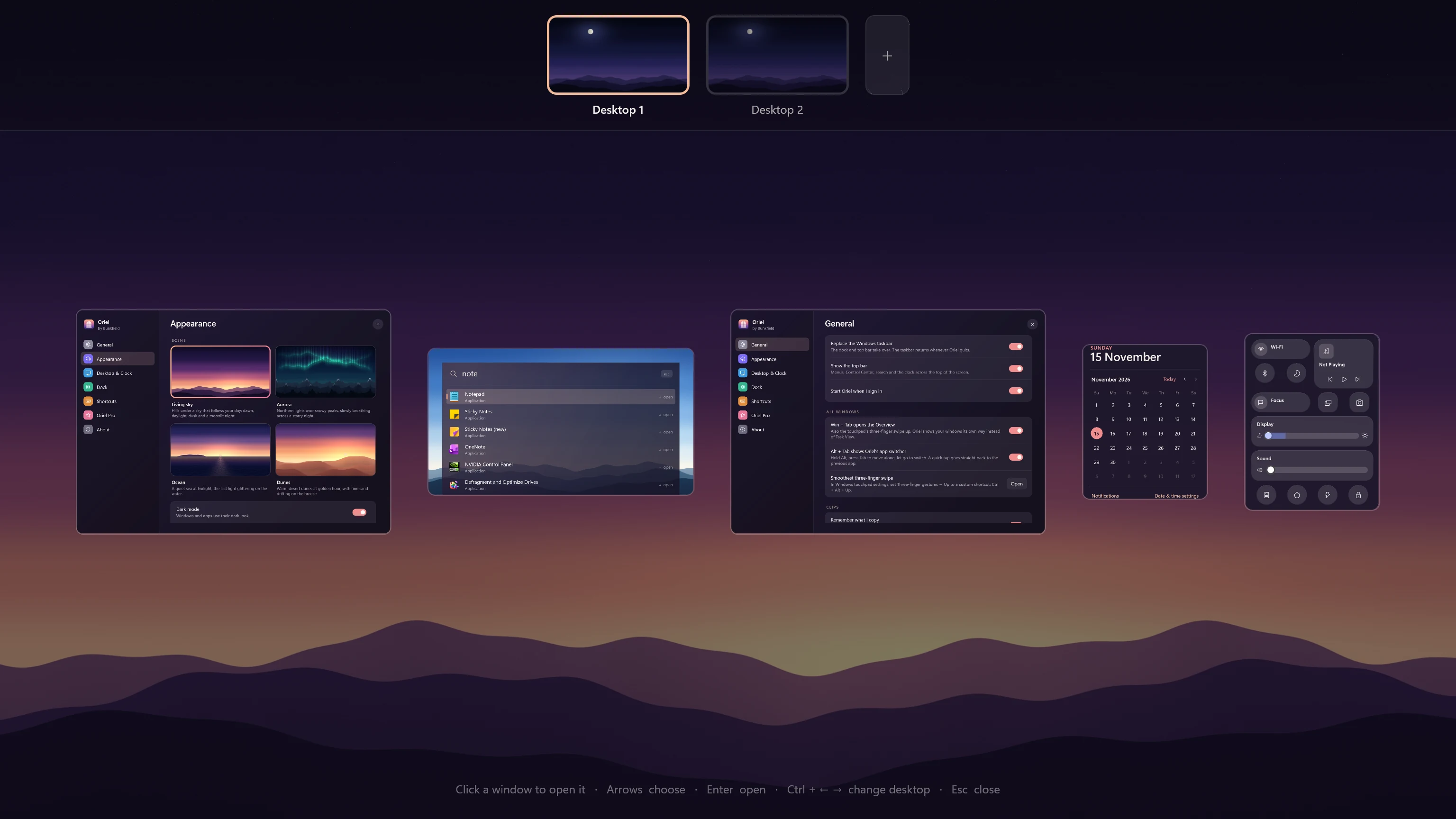
Every window, and every desktop, at a glance.
Swipe up with three fingers, or press Win + Tab. Your windows spread out at their real proportions, with your desktops along the top.
- Drag a window onto a desktop to move it there, or onto + for a new one
- Close a desktop from its corner; its windows move next door
- Win + Ctrl + 1–9 jumps straight to a desktop
Switching apps
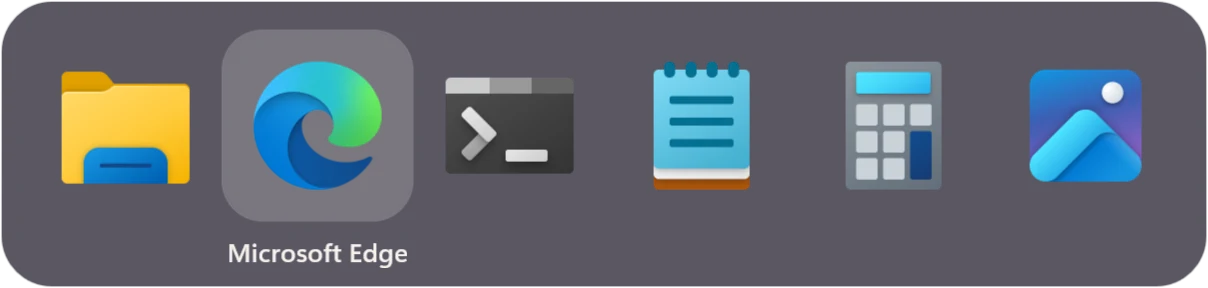
Alt + Tab, the calm way.
A row of app icons on a pane of glass, on the screen you're looking at. A quick tap goes straight back to the last app; hold Alt to choose, or just point at one.
- One icon per app, not one per window
- Hands back to Windows during full-screen games
Search
Open anything in a few keystrokes.
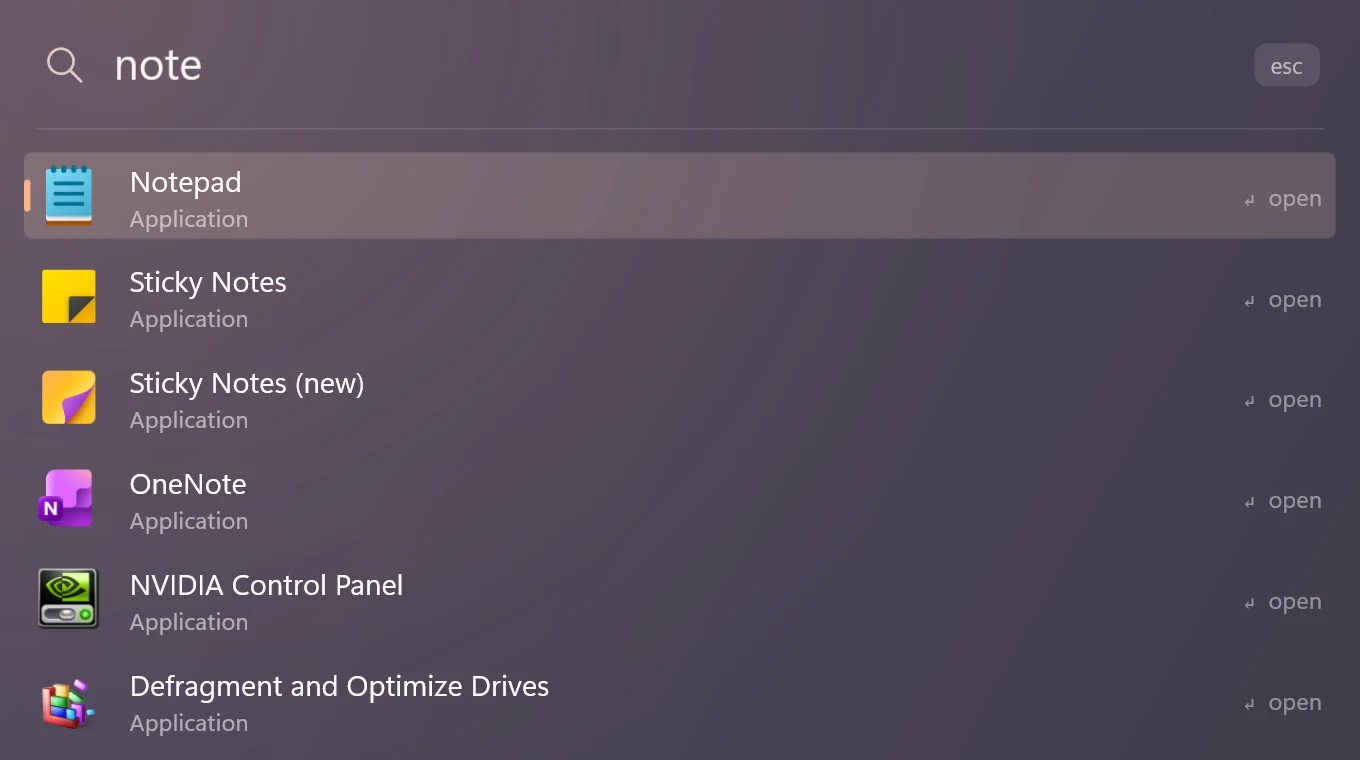
Press Ctrl + Space and type. Apps, settings, files, quick sums and web searches, in the order you use them.
- Learns what you open most
- Works the moment it appears, with no indexing to wait for
Scenes
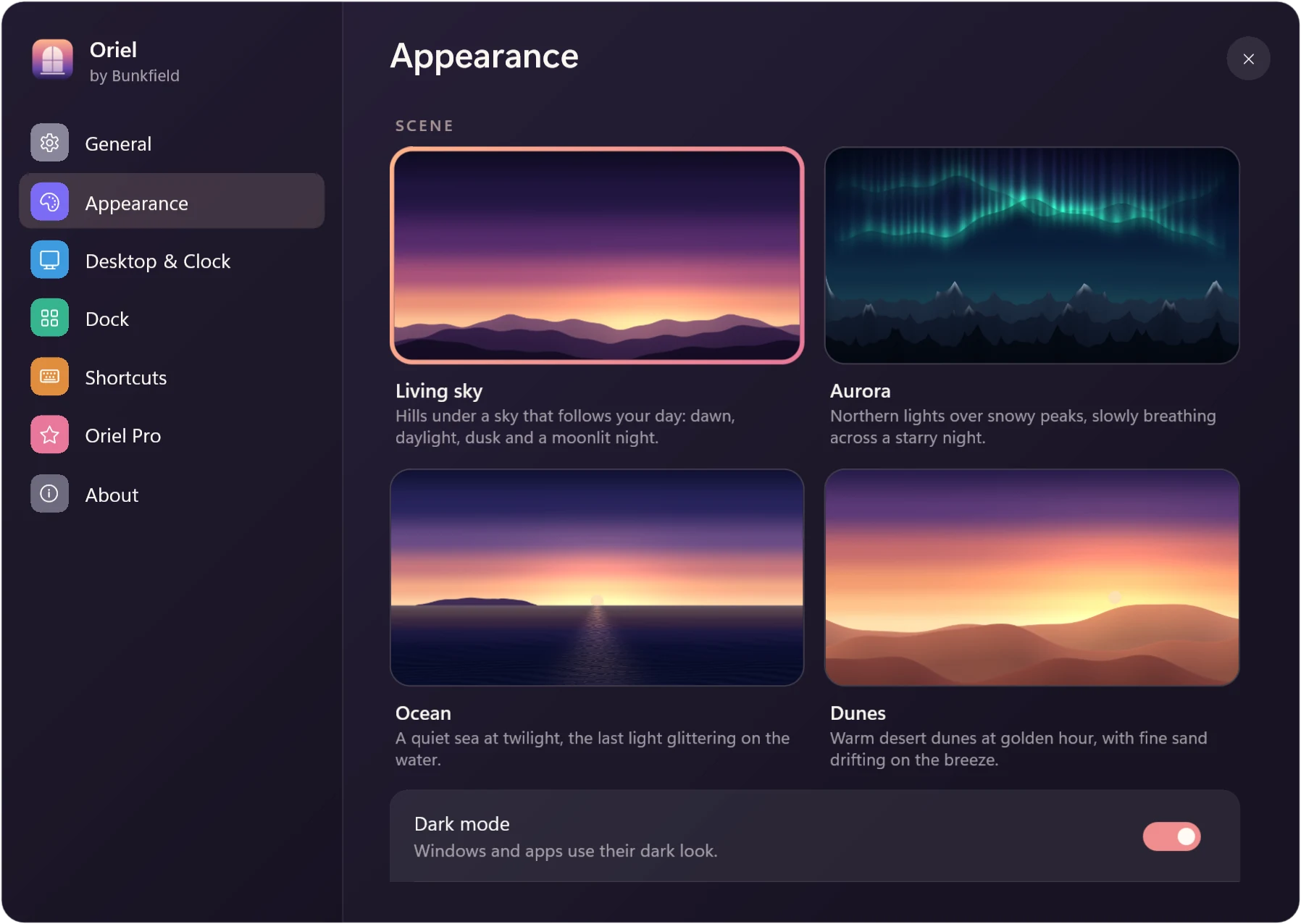
Four wallpapers that are quietly alive.
Each scene sets the wallpaper, the accent colour, the lock screen and a little motion: an aurora that breathes, glints on the sea, sand drifting over the dunes. The motion rests whenever an app fills the screen.



And the small things
Thoughtful touches you'll use every day.
Clips
The last 30 things you copied, ready to paste again with a number key. Kept in memory only.
Focus
Everything but the app you're working in fades back. A timer sits in the menu bar until you're done.
Rest
Step away and your screen becomes the scene, until you move the mouse. Never while you're watching something.
Two screens
Every screen gets its own menu bar and scene. The dock follows you to whichever screen you push the pointer down on.
Your settings follow you
Sign in to Oriel and your dock, scene and choices come back by themselves after a reinstall.
Hot corners
Rest the pointer in a corner to see all windows, show the desktop, search, lock or rest.
See it move
Fifty seconds with Oriel.
Made from Oriel's own screens. No voice-over, no stock footage.
Safe by design
Your PC stays yours.
Oriel never patches Windows or the apps you use. It saves every original setting before it changes anything, and puts each one back when you ask.
Nothing is modified
Oriel runs on top of Windows, for your account only, without admin rights.
Crash protection
If Oriel ever stops, a small helper brings the taskbar straight back.
An emergency key
Ctrl + Alt + Shift + F12 returns Windows to normal at once.
Uninstall means uninstall
Your wallpaper, colours, pointer, sounds and taskbar come back as you left them.
About the blue warning
Oriel comes from a small studio, so the first time you open the setup, Windows may say "Windows protected your PC". It does this for apps it hasn't seen many people install yet.
Click More info, then Run anyway. You'll only see it once on your PC. To be sure the file is ours, compare its SHA-256 checksum with the one shown when you download.
Pricing
Try it for a day. Keep it for good.
Everything is free for 24 hours. If Oriel isn't for you, Windows goes back to normal by itself.
Including taxes. No subscription, ever.
- Every Oriel feature, including the four scenes
- Free updates through version 1
- Your key is in your account and works offline
- 7-day refund, for any reason
UPI, cards and net banking through Razorpay. Checkout opens very soon.
How buying works
Start from Oriel
In Oriel Settings › Oriel Pro, press Get Oriel. Your PC's code comes along, so the licence is made for this PC.
Sign in and pay
Create an account (or sign in) and pay with UPI, a card or net banking.
That's it
Sign in to the same account in Oriel and your licence activates by itself. You can also copy the key from your account.
FAQ
Questions, answered plainly.
Does it work on Windows 10?
Not yet. Oriel needs Windows 11. The setup tells you plainly if your PC isn't ready, and changes nothing.
Will it slow my laptop down?
At rest Oriel uses well under one percent of one processor core. The scene motion runs on the graphics chip and rests on any screen an app fills.
What happens to my wallpaper and settings?
Oriel saves each original before changing it. Choose "Restore original Windows look" in Oriel Settings, or uninstall, and every one comes back.
Does it get in the way of games?
No. When a game or video goes full screen, Oriel steps aside on that screen and hands Alt + Tab back to Windows.
Can I use one licence on two PCs?
Each licence is made for one PC, which is what keeps the price at ₹500. Buy another from the second PC. Reinstalled Windows or replaced your laptop? Open a support request and we'll move your licence for free.
Do I need an account?
To buy, yes. It's where your licence, your PCs and your support requests live, and it lets Oriel bring your settings back after a reinstall. Using the free day needs no account.
Can I get a refund?
Yes, within 7 days of buying, for any reason. Open a support request from your account. See the refund policy.
Is Oriel made by Apple or Microsoft?
Neither. Oriel is an independent app by Bunkfield. It borrows a few good ideas from many desktops, but every image, sound and line of code in it is our own.
Give your desktop a calmer view.
Free for a day. ₹500 once if you keep it.